Replace the Current Members of a Mailman List with New Members
Summary
Information about replacing current members of a Mailman List with new members
Body
If you do not have a text file with the current members of your list, see Creating a Text File Containing the Members of a List, or you can request one by emailing postmaster@uwyo.edu.
- Log into the list admin page at https://lists.uwyo.edu/mailman/admin/list-name (where list-name is the name of your list).
- Click on Membership Management in the first column, then click on Mass Removal.
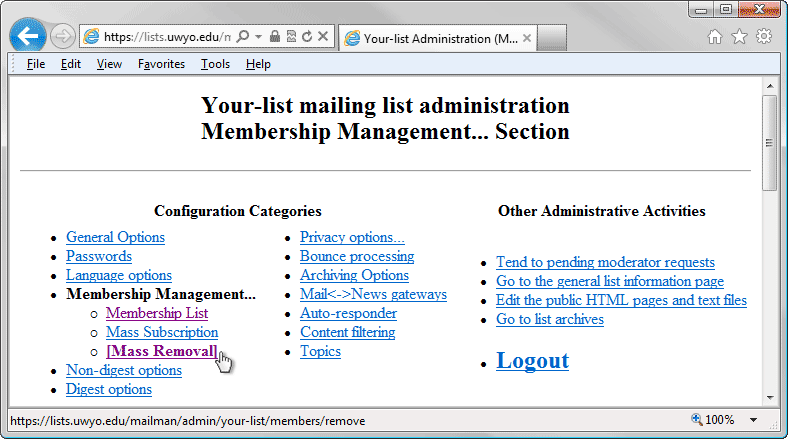
- In the Mass Removal section:
- Turn off notices:
Send unsubscription acknowledgement to the user? NO
Send notifications to the list owner? NO
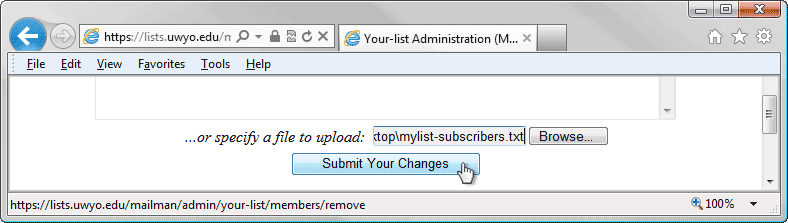
- Browse to the text file either provided to you or which you have used for a prior Mass Subscription on your computer and select it.
- Click Submit your changes. This will remove all the member addresses from the file.
- On the Membership Management page click on Mass Subscriptions.
- In the Mass Subscriptions section:
- Verify/set to the following:
Subscribe these users now or invite them? Subscribe
- Turn off notices:
Send welcome messages to new subscribees? NO
Send notifications of new subscriptions to the list owner? NO
- Browse to your text file of new addresses on your computer and select it.
- Click Submit your changes.
- Save this text file of new addresses to use the next semester/year/etc. for the Mass Remove.
Details
Details
Article ID:
7537
Created
Fri 7/10/15 10:52 AM
Modified
Wed 7/8/26 4:29 PM